Manual Install
Use this guide to install Pyze on one machine: your own device, a test machine, or an unmanaged browser that is not covered by an enterprise deployment. No admin rights are needed.
There are two steps: install the browser extension, then run the native host helper.
Prerequisites: Your Pyze contact or administrator has sent you:
- The Chrome Web Store link, or the extension package
pyze-<customer>-<version>.zip - The native host helper folder for your operating system:
pyze-native-host-<customer>-windowsorpyze-native-host-<customer>-macos
Step 1: Install the Extension
Use whichever applies: the store, or the package your Pyze contact sent you.
Option A: From the Chrome Web Store
Open the store link your Pyze contact gave you.
- Chrome: click Add to Chrome.
- Edge: if the link is an Edge Add-ons listing, click Get. If it is a Chrome Web Store listing, allow extensions from other stores when asked, then click Add.
Continue to Step 2.
Option B: From the Package
Extract the extension
Before installing, extract the extension files to a permanent location.
- Locate the downloaded ZIP file (
pyze-<customer>-<version>.zip) - Right-click the ZIP file and select Extract All
- Choose a permanent location, for example:
- Windows:
C:\Extensions\pyze-extension - macOS:
~/Extensions/pyze-extension
- Windows:
Important
Do not delete or move this folder after installation. The browser loads the extension from this folder every time it starts.The package carries a pinned signing key, so the extension keeps the same ID that the native host trusts. Load only the package Pyze sent you. A store build loaded unpacked gets a different ID and the native host rejects it.
Load the extension
Select your browser below and follow the installation steps.
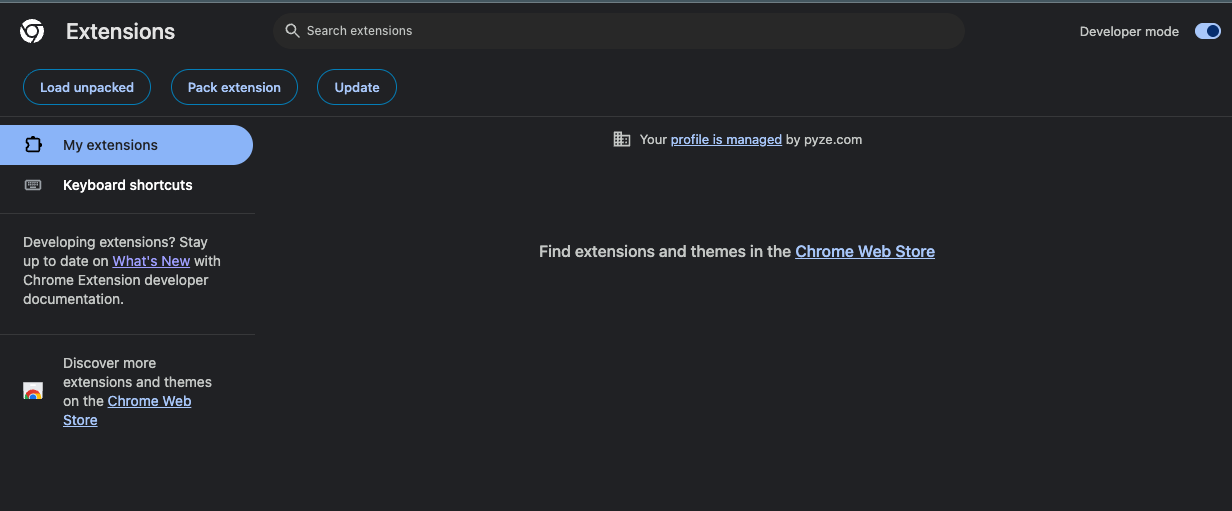
Enable Developer Mode
- Open Google Chrome
- Navigate to
chrome://extensions/ - Toggle Developer mode ON (top-right corner)
Load the Extension
- Click Load unpacked
- Navigate to and select the extracted
pyze-extensionfolder - The Pyze <Customer> extension appears in your extensions list
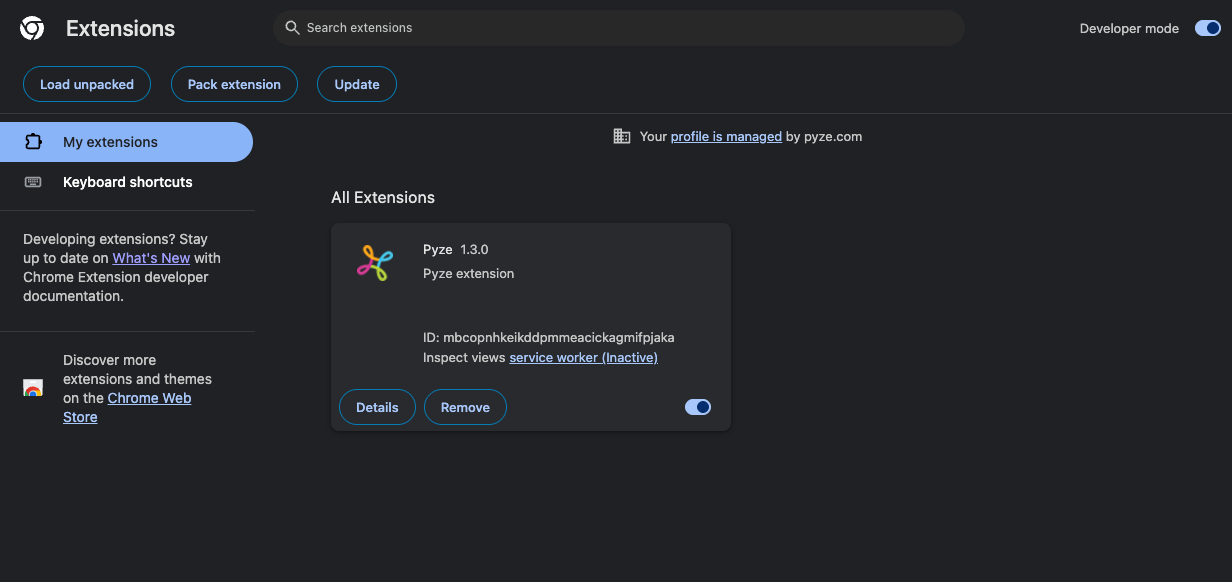
If Chrome shows a “Disable developer mode extensions” message at start-up, close it. The extension stays on.
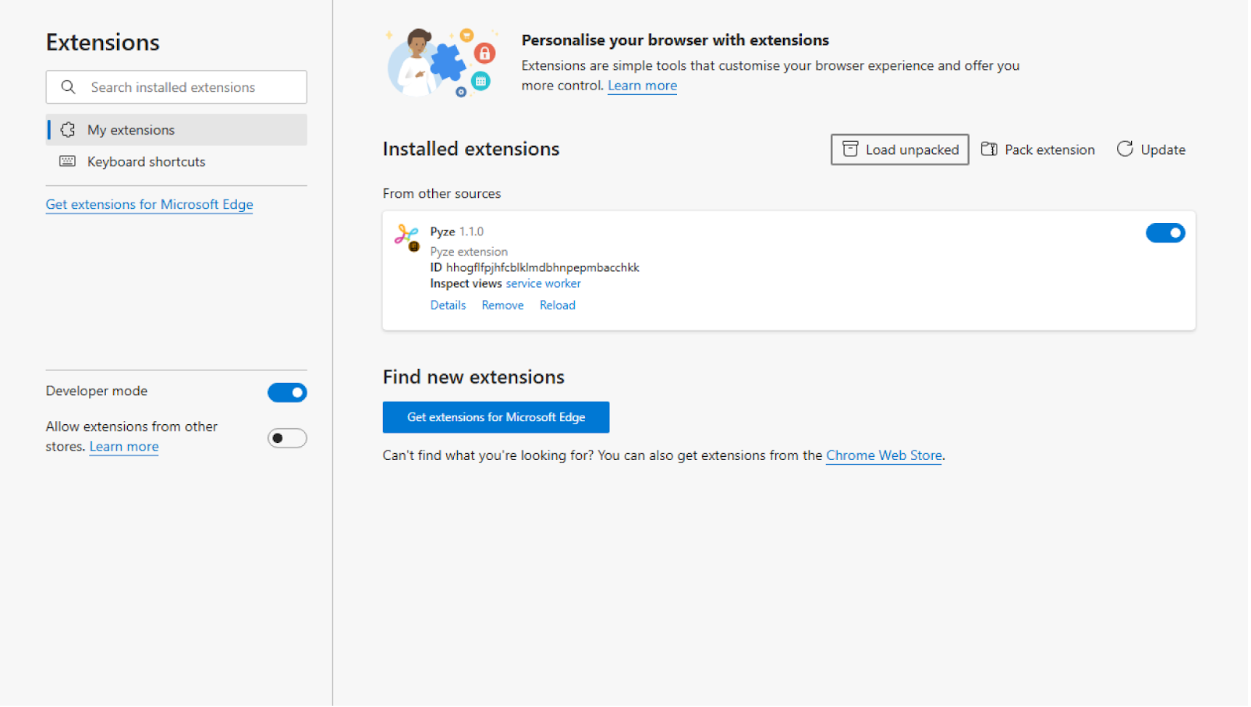
Enable Developer Mode
- Open Microsoft Edge
- Navigate to
edge://extensions/ - Toggle Developer mode ON (bottom-left corner)

Load the Extension
- Click Load unpacked
- Navigate to and select the extracted
pyze-extensionfolder - The Pyze <Customer> extension appears in your extensions list
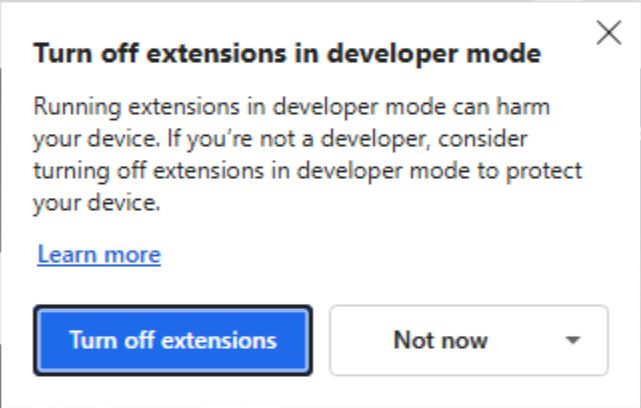
Note
If prompted with “Turn off Developer mode?”, select Not now to keep the extension active.
Step 2: Install the Native Host Helper
The native host is a small local helper that reads your OS username and hands the extension a hashed identifier (see Privacy note). Without it, the extension cannot identify the signed-in user.
You were given a folder for your operating system. Unzip it and keep all the files together. Do not move the files out of the folder.
- Windows:
pyze-native-host-<customer>-windows - macOS:
pyze-native-host-<customer>-macos
- Open the unzipped folder
- Double-click
install-windows.bat. If Windows SmartScreen warns you, click More info, then Run anyway - Wait for “Installation complete”, then close the window
- Fully close Chrome or Edge (every window) and reopen it
- Open the unzipped folder
- Right-click
install-macos.commandand choose Open, then Open again. Right-click is needed only the first time- On macOS 15 (Sequoia) and later this shortcut no longer works. If macOS blocks the script, open System Settings, go to Privacy & Security, scroll to the message about the blocked script, click Open Anyway, then run it again
- Wait for “Installation complete”
- Quit Chrome or Edge with Cmd + Q and reopen it
Done
Pyze now runs automatically on the approved sites. Nothing else is needed.
Removing Pyze
- Remove the extension on
chrome://extensions/(Edge:edge://extensions/) - Run
uninstall-windows.bat(Windows) oruninstall-macos.command(macOS) from the same native host folder you installed from
Troubleshooting
| Issue | Solution |
|---|---|
| Extension not loading | Verify the extracted folder contains manifest.json and Developer mode is enabled |
| Extension disabled after restart | Re-enable Developer mode and reload using Load unpacked |
| Folder selection fails | Ensure you’re selecting the folder containing manifest.json, not a parent folder |
| Extension not visible | Check that the extension toggle is enabled in the extensions list |
| Users not identified | Confirm the native host installer reported “Installation complete”, that the helper files are still in the unzipped folder, and that you fully closed and reopened the browser afterwards |
| “Access to the specified native messaging host is forbidden” | The native host does not trust the extension’s ID. Load the package Pyze sent you (not a store build), re-run the native host installer, then fully restart the browser |
Privacy Note
The native host reads your OS username and sends only a SHA-256 hash of it. The username itself is never sent. The hash is a stable pseudonymous identifier, so the same user gets the same ID on every machine.