Survey Setup — In-Product Surveys, NPS & Feedback
Collect feedback in the flow of work — event-triggered microsurveys, NPS/eNPS, and always-on feedback widgets — with frequency capping and segment targeting. Build a survey once, choose when and to whom it shows, and every response ties back to the respondent’s behavior.
Capabilities
Question & survey types
- NPS and eNPS (0–10) with automatic promoter / passive / detractor scoring
- Rating questions — star, smiley, or number scales (3 to 10 points)
- Single- and multiple-choice, ranking, and picture selection
- Open text with email, URL, number, and phone input variants
- Matrix, consent, date, address, and contact-info questions
- A call-to-action card for in-product announcements and prompts
- Welcome screens and custom thank-you screens — end on a message with a call-to-action button, or redirect to a URL
- Multi-step flows with branching logic, computed variables, recall (pipe an earlier answer into a later question), hidden fields, and per-survey languages
Triggering & display
- Code-triggered surveys fired from a custom event in your app
- No-code triggers — page view, element click, exit intent, and 50% scroll — with URL matching rules
- Frequency capping: show once, show again after a recontact wait, or limit total displays
- Sampling by percentage, an initial delay, auto-close, and a start/close scheduling window
- Close the survey automatically once it reaches a target number of total responses
Targeting
- Segment on attributes, person identifiers, and device
- Route a survey to specific apps by app key (app targeting)
- User targeting filters for advanced, attribute-based audiences
Formats
- In-product surveys shown inline or as a modal, positioned in any corner or centered, with an optional dark overlay
- Shareable link surveys for surveys that run outside the app
- Branding to match your app — colors, logo, progress bar, background, dark mode, and card layout
- Email follow-ups triggered on response or on a specific ending
Getting Started
Step 1: Enable Surveys for your app
Surveys are turned on per app by Pyze. Contact Pyze to enable Surveys for your app, and the Surveys item appears in the left-hand menu.
Don't see Surveys in the menu?
The Surveys menu item only appears once Pyze has enabled the capability for your app. If it’s missing, reach out to Pyze to have it turned on.Step 2: Create and publish a survey
-
Open Surveys from the menu.
-
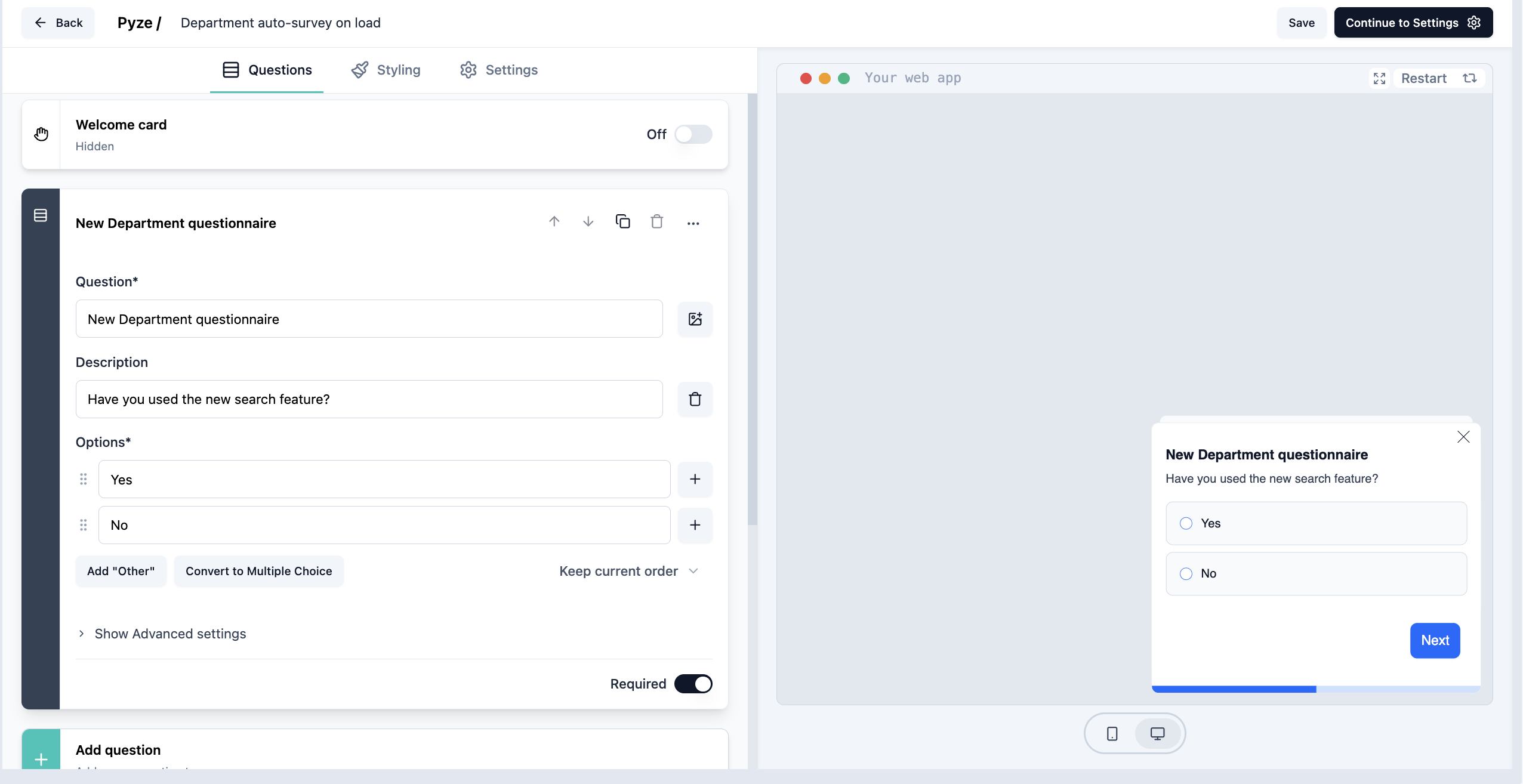
Start from a template or build from scratch — add your questions (NPS/eNPS, rating, multiple choice, open text, and more), a welcome and thank-you screen, and set branding, branching, and languages as needed. A live preview shows the survey as you build it.
 ×
×
-
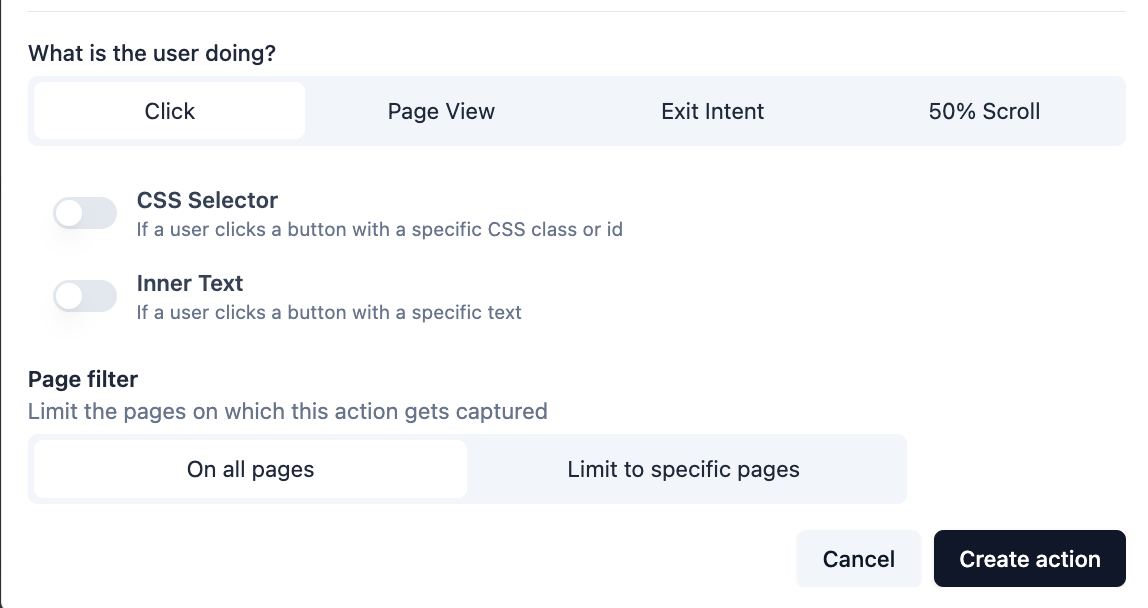
Choose when the survey appears with a no-code trigger — no changes to your app are needed; the Pyze agent already on your site displays it:
- Page view — when someone lands on a page
- Element click — when a specific button or element is clicked
- Exit intent — as the pointer moves to leave the page
- Scroll — once someone scrolls part-way down the page
Narrow any trigger to specific pages with URL rules (exact match, contains, starts with, ends with). You can also add a short delay before the survey appears and auto-close it after a set time.
 ×
×
-
Set who sees it and how often:
- Audience — target by segment or by user attributes, or route the survey to specific apps.
- Recontact — show it once, allow repeat displays, or wait a set number of days before showing it to the same person again.
- Display cap — limit the total number of times it’s shown, or show it to only a percentage of eligible users (sampling).
- Schedule — set start and end dates so the survey runs only within a window.
-
Publish the survey to make it live.
In your app
Nothing beyond the Pyze agent you already use for analytics is required to display surveys. If you target on user attributes, set those attributes from your app with the Pyze SDK so the agent can match them.Responses flow into analytics tied to the user, so you can compare what people say with what they do. Tag and filter responses to organize them.
Availability
Available in the voice-of-customer workspace. PII is masked at the point of capture (see Data Privacy & Consent).